
Compress, Reduce Video Size
Eco Mobile EditorVideo Players & Editors
4.239.00 Reviews
- Version
- 1.4.9
- Installs
- 500.00K
- Age Rating
- Everyone
Screenshots
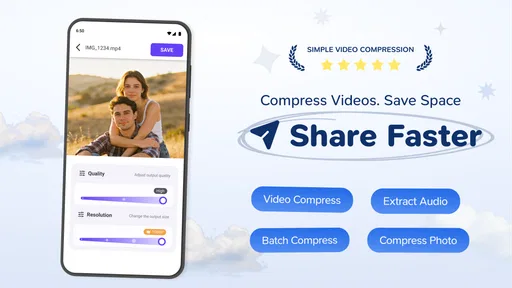
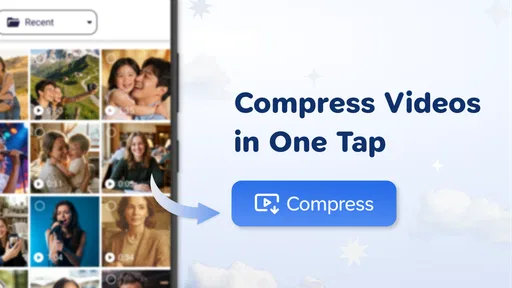
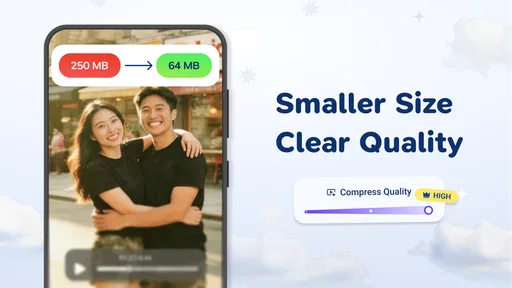
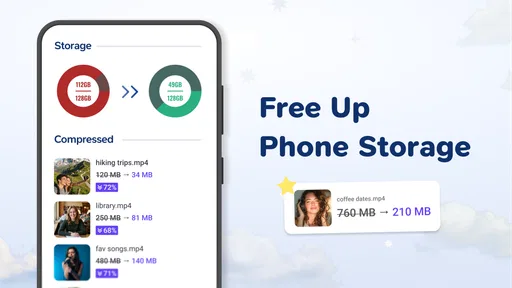
Our Review of Compress, Reduce Video Size
 Analysis by Appyee
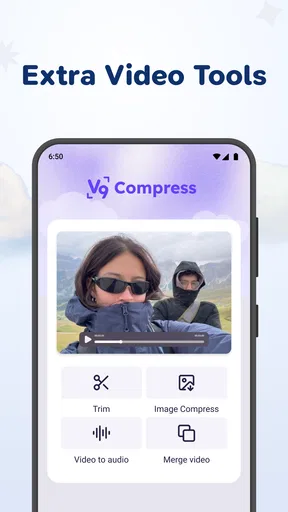
I find Compress, Reduce Video Size most useful when a video is perfectly fine to watch but awkward to store or send. It is a focused tool in the video editing category, aimed at everyday jobs rather than a full production workflow. The appeal is straightforward: make a clip smaller, trim it, join clips, change playback speed, or pull out its audio without having to learn a complicated editor.
That narrow purpose is also the right way to judge it. I would reach for it when I need a quick file adjustment on a phone, not when I want to build a polished video with titles, layered effects, or detailed color work. If you often share recordings or need to reclaim space, that distinction can save time: a compact utility may be easier than opening a larger editing suite and navigating tools you do not need.
Where a simple editor can still cause a pause
Even a short workflow can feel uncertain if you are not sure what the result will look like. Compression always involves a balance: a smaller file may be easier to send, but it can also make fine detail or motion look less clean. I recommend keeping the original until you have checked the compressed copy, especially for footage you might want to reuse. Treat the first pass as a test rather than assuming the smallest option is automatically the best one.
It also helps to decide what problem you are solving before you start. If a clip is too long for a message, trimming a few unneeded seconds may be preferable to reducing the quality of the whole recording. If the complete video matters, compression is the more relevant step. For a collection of clips, joining them may make sense, but it is a different task from shrinking an individual file. Choosing the right operation first avoids extra work and protects the parts you care about.
Setup checks before working on an important clip
The app is free to download, is rated for Everyone, and is developed by Eco Mobile Editor. Its current version is 1.3.7, and it requires Android 8.0 or later. I would check that system requirement before planning a job on an older device. The app has an average rating of 4.3 from around 7,500 ratings and has been installed over 100,000 times, so it has a substantial audience, though those figures alone cannot tell you whether its particular workflow suits you.
Before editing, make sure you can identify the source clip and have enough room to keep a separate result if you want to compare quality. That is a useful precaution with any video conversion: a saved copy gives you a way back if the reduced version looks too soft or the trim removes a moment you meant to keep. I would also test the process on a short, unimportant clip before relying on it for a one-off recording.
Recovering a workflow when the result is not right
If a compressed video still feels too large, try a different balance rather than repeatedly applying stronger compression to an already reduced copy. Starting from the original gives you a cleaner basis for another attempt. If the picture looks worse than expected, go back to that source and aim for a less aggressive reduction. The practical goal is not the smallest possible file; it is a file small enough for your purpose while remaining pleasant to watch.
For a clip that seems to stall or does not appear where you expect after editing, I would first check the app’s displayed result and the phone’s available storage, then reopen the source and retry only after confirming the original is still available. These are general troubleshooting steps, not a guarantee about a particular device. Keeping the original untouched is the simplest form of workflow recovery, and it matters more when you are dealing with family footage, a work recording, or anything difficult to recreate.
How it fits beside other video tools
Compared with a full-featured mobile editor, this app is best understood as a quick utility, not a replacement. A larger editor is usually a better fit when a project needs a timeline, titles, transitions, or precise creative control. A basic file manager may help you locate or delete large videos, but it will not do the same editing jobs. This app’s value is the middle ground: make a practical change to a clip without turning the task into a full editing session.
That focus is useful for someone who regularly records on a phone and shares the results in chats, or who wants to keep a shorter, lighter copy for everyday viewing. It is less suited to creators who need fine control over export settings, detailed editing, or a predictable professional workflow. I would also choose a dedicated audio editor if the extracted sound needs substantial cleanup or mixing; pulling audio from video is not the same as finishing an audio project.
When the phone or source file may be the issue
Not every frustrating result points to the editor. A video can already be blurry, shaky, or poorly lit before compression, and reducing its size cannot restore detail that was never captured. Likewise, a file that is difficult to share may run into limits imposed by the service you are sending it through. In that case, trimming or making a smaller copy may help, but the receiving platform still determines what it accepts.
If a file will not behave as expected, try a different source clip and see whether the same problem occurs. That simple comparison can help separate an issue with one recording from a broader workflow problem. I would avoid assuming that a failed attempt means the video is damaged, and I would keep the original while checking the result in the phone’s usual video player. For valuable footage, use a copy and verify the playback before deleting anything.
Who will get the most from it
This is most appealing to people who want a practical fix without learning a large editor: someone sending a long family clip, a student moving a recording between devices, or a traveler trying to keep several videos manageable. A realistic example is recording a birthday moment, trimming the quiet lead-in, then reducing the remaining clip so it is less cumbersome to share. Doing those steps in that order can preserve more of the useful picture than shrinking a longer recording that contains minutes you never intended to send.
It is also a reasonable choice if you occasionally need to speed up footage or combine a few clips, but those tools are conveniences rather than a reason to expect a complete creative suite. If you only need to clear storage, first review whether you can safely remove duplicate or unwanted recordings; compressing everything may take longer and leave you with many versions to organize. If you routinely make social videos with captions, music, and visual polish, a fuller editor will likely be worth the extra complexity.
Cost and expectations
The app is free, with in-app purchases ranging from $1.99 to $38.99 per item. I would start with the free experience and decide whether it handles your actual tasks before considering a purchase. Since the main question is whether its basic workflow fits your habits, there is little reason to pay in advance for capabilities you may not use. As with any app that offers purchases, check the current in-app options on your device before making a decision.
The store release date is December 6, 2024, and the app is intended for everyone. Those details are useful context, but they do not replace a hands-on check of how it works with your own recordings. File size, picture quality, and processing time can vary with the source and device, so I would judge the result by watching the exported clip rather than relying only on a progress indicator or an estimated reduction.
Getting Started with Ease
First off, let me tell you, getting started with Compress, Reduce Video Size is as easy as pie. The app is available for both Android and iOS, and the download is a breeze. Once installed, you're greeted with a clean and intuitive interface that doesn’t overwhelm you with too many options. It's pretty straightforward, which I appreciate because who has time to fiddle around with complicated settings?
Features that Pack a Punch
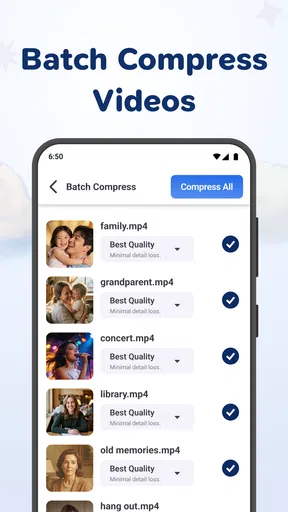
The app comes loaded with some nifty features. You can choose from different compression levels, which is super handy. Whether you want to keep things in HD or go for a smaller, more manageable file size, the choice is yours. The app also supports a wide range of video formats, so you’re not limited to just MP4. Formats like AVI, MOV, and MKV are all fair game here.
One feature I found particularly cool is the batch processing option. Got a bunch of videos? No problem. You can compress them all in one go. Saves time and effort, especially if you’re dealing with a ton of footage from your last vacation or event.
Quality vs. File Size
Now, I know what you're thinking: does reducing the file size mean sacrificing video quality? Well, surprisingly, not so much. The app does a stellar job of maintaining a good balance between quality and size. Of course, there’s a bit of a trade-off if you’re going for the smallest possible file, but generally, the results are impressive. Your videos will still look sharp and clear, which is a big win in my book.
Speed and Performance
When it comes to speed, this app doesn’t disappoint. Compressing your videos happens pretty darn fast. Even for larger files, the wait time isn’t too long. It’s efficient and doesn’t hog your device’s resources, so you can go about your business while it does its magic in the background.
User-Friendly Interface
Let’s talk about the interface a bit more. As someone who’s not super tech-savvy, I found it refreshingly simple. The layout is intuitive, and everything is where you expect it to be. There are no hidden menus or confusing jargon. Just load your video, select your compression preferences, and hit start. Easy peasy!
Sharing Made Easy
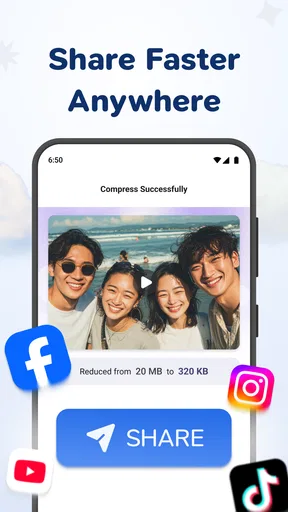
Once your video is compressed, sharing it is a walk in the park. The app provides direct options to send your videos via email or share them on social media platforms. No more jumping through hoops to get your videos where they need to go. It’s seamless and integrates well with other apps on your phone.
Final Thoughts
All in all, Compress, Reduce Video Size is a solid app that delivers on its promise to make video compression hassle-free. It’s user-friendly, efficient, and doesn’t compromise on quality. Whether you’re a casual user looking to free up some space or someone who needs to send videos regularly, this app is worth checking out. Give it a whirl, and say goodbye to those "file too large" blues!
Verdict
Strengths of Compress, Reduce Video Size
- Easy-to-use interface for quick navigation.
- Supports multiple video formats seamlessly.
- Batch processing saves significant time.
- High-quality output despite compression.
- No intrusive ads during use.
Limitations of Compress, Reduce Video Size
- Limited editing features beyond compression.
- No cloud storage integration available.
- Free version has file size limits.
- Occasional crashes on older devices.
- No support for 4K resolution videos.
Other Releases by Eco Mobile Editor
View All
Photo Video Maker With Music
Video Players & Editors4.5

Screen Recorder - G1REC
Video Players & Editors4.7

Crop, Trim Video Editor
Video Players & Editors4.6
Similar Picks in This Category
View All
Google TV
Google LLC3.9

iTunes
Apple4.7

YouTube
Google LLC3.8

MX Player
Amazon Mobile LLC4.2

CapCut - Video Editor
Bytedance Pte. Ltd.3.5

PLAYit-All in One Video Player
PLAYIT TECHNOLOGY PTE. LTD.4.5
Frequently Asked Questions
How does Compress, Reduce Video Size work?
Compress, Reduce Video Size uses advanced algorithms to reduce the file size of video clips without significantly compromising quality. It allows users to select different compression levels and formats, ensuring compatibility across various devices. The app processes the video quickly, making it easy to share or store without taking up too much space.
What video formats are supported by the app?
The app supports a wide range of video formats including MP4, AVI, MOV, and more. This extensive compatibility ensures that users can compress videos from different sources and devices. The app also allows conversion between formats, providing flexibility based on the user’s needs and preferences.
Is the app easy to use for beginners?
Yes, the app is designed with a user-friendly interface that caters to both beginners and advanced users. It features a simple drag-and-drop functionality, clear instructions, and intuitive controls. Users can easily navigate through the app and perform compressions with just a few taps, making it accessible for everyone.
Does compressing videos affect their quality?
While some quality loss is inevitable when compressing videos, the app minimizes this effect by utilizing efficient compression techniques. Users can choose the level of compression based on their priorities—higher compression for smaller size or lower compression for better quality. This choice helps balance size and quality effectively.
Are there any privacy concerns when using the app?
The app prioritizes user privacy and does not store or share any videos processed through its platform. All video compression is done locally on the user's device, ensuring that personal content remains secure. Users can confidently compress videos without worrying about privacy breaches.
